Re-encoding our photos as WebP and serving them at several widths cut the home page image from 123 KB to 51 KB and the About page image from 173 KB to 86 KB. The visitor sees the same photo; the browser downloads half the bytes or fewer. In our experience image weight is the cheapest speed work on a content site, and alt text, file names and dimensions fill the rest of an afternoon.
What Google says about images
Google’s image guidance is short. It asks for descriptive alt text and descriptive file names, and for images placed in or near text that is relevant to them. It indexes images that are standard <img> elements with a src, and says that images used only as CSS backgrounds are not indexed as images. The formats it indexes are BMP, GIF, JPEG, PNG, WebP, SVG and AVIF. Responsive images through srcset or <picture> are fine as long as the <img> keeps a src fallback, and an image sitemap is available as an optional extra.
That page gives no target file size and no figure for how much alt text matters, so everything about weight in this guide is our measurement and our recommendation, and we label it that way. The Google-stated rules are few, and a small site can satisfy all of them in one pass through its templates.
Alt text that helps people first
Alt text exists for people who cannot see the image, mainly screen reader users, and Google reads the same property for context. A description that serves the first group serves the second, so there is no trade-off to manage. The examples below are invented to show the pattern.
| Image | Weak alt | Better alt | Why |
|---|---|---|---|
| Screenshot of a failed ads.txt check | image | Checker result with line 3 marked as an error | Says what the reader would see |
| Bar chart of a speed measurement | chart | Bar chart: home page LCP of 1,605 ms against the 2,500 ms threshold | Carries the data the chart shows |
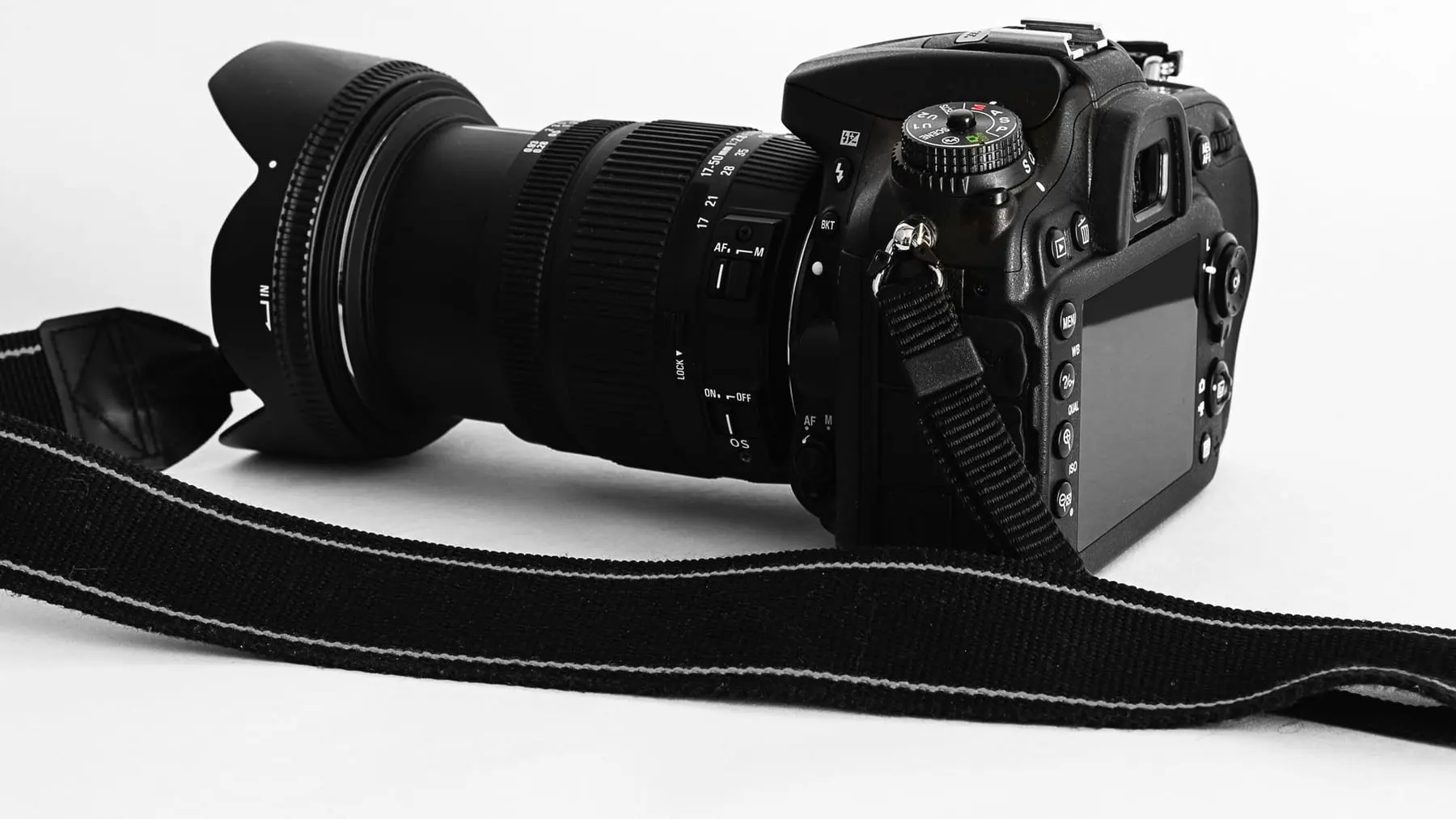
| Header photo of a camera on white | camera photo best seo tips adsense | A camera with its strap lying on a white background | Describes the photo, with no keyword list |
| A thin decorative divider | divider.png | alt="" | Nothing to announce, so screen readers skip it |
Describe the content and the purpose in one plain sentence. Do not begin with “image of” or “photo of”, because the screen reader already says it is an image. If the picture contains text, repeat that text. On decorative images, keep the attribute and leave it empty rather than removing it: when the attribute is missing, some screen readers fall back to reading the file name. Our SEO checker counts missing alt attributes separately from deliberately empty ones for exactly this reason.
Weight and format: what we measured
Our build converts each source JPEG to WebP at quality 76 and produces several widths of it. Header photos on guides get four widths, 640, 960, 1280 and 1800 pixels, and the default for other images is three, 480, 800 and 1200. These are the weights on our own pages:
| Image | Original JPEG | WebP, large version |
|---|---|---|
| Header photo of a guide | 175 KB | 94 KB |
| Home page photo | 123 KB | 51 KB |
| About page photo | 173 KB | 86 KB |
The 640-pixel version of the guide photo, the one a phone downloads, weighs 23 KB, against 94 KB for the 1800-pixel one. That is the part of the saving people forget: encoding and resizing roughly halve the large file, and the width variants spare a phone from fetching it at all. A phone showing a photo about 400 CSS pixels wide has no use for the 1800-pixel file.
WebP is supported by all current major browsers, so we do not ship a JPEG fallback for it. If you want AVIF as well, nest it in a <picture> with the fallback in the <img>, as shown below. Whatever the format, check the result by eye at the size it is displayed, since quality 76 is our choice for photographs and not a universal setting.
Markup you can copy
The main image of a page is often the largest element on screen, so it gets different treatment from images further down. The snippet below is the pattern we use: dimensions that let the browser reserve the space, several widths, a sizes hint, and a priority hint instead of lazy loading.
<!-- Main image: likely the Largest Contentful Paint element, so no lazy loading -->
<img
  src="/img/header-960.webp"
  srcset="/img/header-640.webp 640w,
          /img/header-960.webp 960w,
          /img/header-1280.webp 1280w,
          /img/header-1800.webp 1800w"
  sizes="(min-width: 1200px) 1116px, 94vw"
  width="1800" height="1013"
  alt="A camera with its strap lying on a white background"
  fetchpriority="high">

<!-- Image further down the page: lazy and async -->
<img
  src="/img/chart-800.webp"
  srcset="/img/chart-480.webp 480w, /img/chart-800.webp 800w"
  sizes="(min-width: 800px) 720px, 92vw"
  width="800" height="450"
  alt="Bar chart: home page LCP of 1,605 ms against the 2,500 ms threshold"
  loading="lazy" decoding="async">

<!-- Optional AVIF with a fallback; the img keeps its src -->
<picture>
  <source srcset="/img/photo-960.avif" type="image/avif">
  <img src="/img/photo-960.webp" width="960" height="540" alt="Describe the photo here" loading="lazy">
</picture>
img { max-width: 100%; height: auto; }The width and height attributes let the browser compute the aspect ratio before the file arrives and keep that space free, which is what prevents the text from jumping when the picture loads. That jump is layout shift, one of the three Core Web Vitals, and the CSS rule above keeps the image fluid while preserving the ratio. Our SEO checker has a check for images that lack both attributes. sizes must describe the real layout width, or the browser picks a larger file than it needs. Lazy loading is for images below the first screen; putting it on the main image delays the very element the page is judged by, which is why that one gets fetchpriority="high" instead. The Core Web Vitals guide shows where these attributes fit among the six levers that matter.
A same-day pass over an existing site
You do not need to touch every image to get most of the benefit. Work in this order and stop whenever the list stops paying.
- Find the heaviest images. In the browser’s developer tools, open the Network tab, filter by Img, reload the page and sort by size. Start with the largest file on your most visited page.
- Convert and resize that file. Produce a WebP at the width it is displayed at, plus a smaller one for phones, and check both by eye at display size.
- Add
widthandheightto every<img>, and the CSS rule shown above. This costs a few minutes in a template and removes layout shift caused by images for the whole site. - Audit the alt attributes. The first command below counts the
<img>tags on a page that have noaltattribute at all, as long as each tag sits on a single line of HTML, as it does in minified output. It counts a deliberately emptyaltas present, including the barealtthat some minifiers write. The second command prints the weight in bytes of one image as the server sends it.
curl -s https://example.com/page/ | grep -o '<img[^>]*>' | grep -vcE '[[:space:]]alt([[:space:]=>/]|$)'
curl -s -o /dev/null -w '%{size_download}\n' https://example.com/img/header-960.webp- Run the page through a checker. Our SEO checker reports alt coverage, lazy loading, explicit dimensions, modern formats and a sample of image weight in one pass, so you can see which of these five steps is still open.
Names, placement, credits and sitemaps
Name files for what they show: ads-txt-check-result.webp tells a crawler and a human more than IMG_4032.webp. Put each image next to the paragraph that explains it, because Google uses the surrounding text as context. Avoid hiding content in CSS backgrounds; if an image carries meaning, it belongs in an <img>.
The photos on our guides are real photographs under free licenses, credited under each header to their photographer, with a link to the photographer’s page and to the site where we found the picture (our credits page lists them). We never generate them. Our Article markup also points to a 1200 by 630 pixel share image, covered in the structured data guide.
We do not publish an image sitemap. Our images sit in <img> elements on crawlable pages, which is the route Google documents for finding them. If images are your product, for example a photo archive, an image sitemap is a reasonable addition.
Quick answers
Is AVIF better than WebP for a small site?
Google indexes both formats, so neither costs you visibility. AVIF files can be smaller but take longer to produce, and WebP is enough to get most of the saving. We serve WebP only. If you add AVIF, wrap it in a picture element with a WebP or JPEG fallback in the img tag.
Should every image have alt text?
Every img element should have an alt attribute. Images that carry meaning get a description, and purely decorative ones get alt="" so screen readers skip them. Leaving the attribute out entirely is the one choice that helps nobody.
Do I need an image sitemap?
Google lists image sitemaps as an optional extra for helping it find images. Images that appear in img elements on crawlable pages are discoverable without one. We do not publish an image sitemap.